


By Elias Shekh Writes the guides on this blog and builds the tools they describe.
The Complete Guide to Managing PDFs Online Without Installing Software
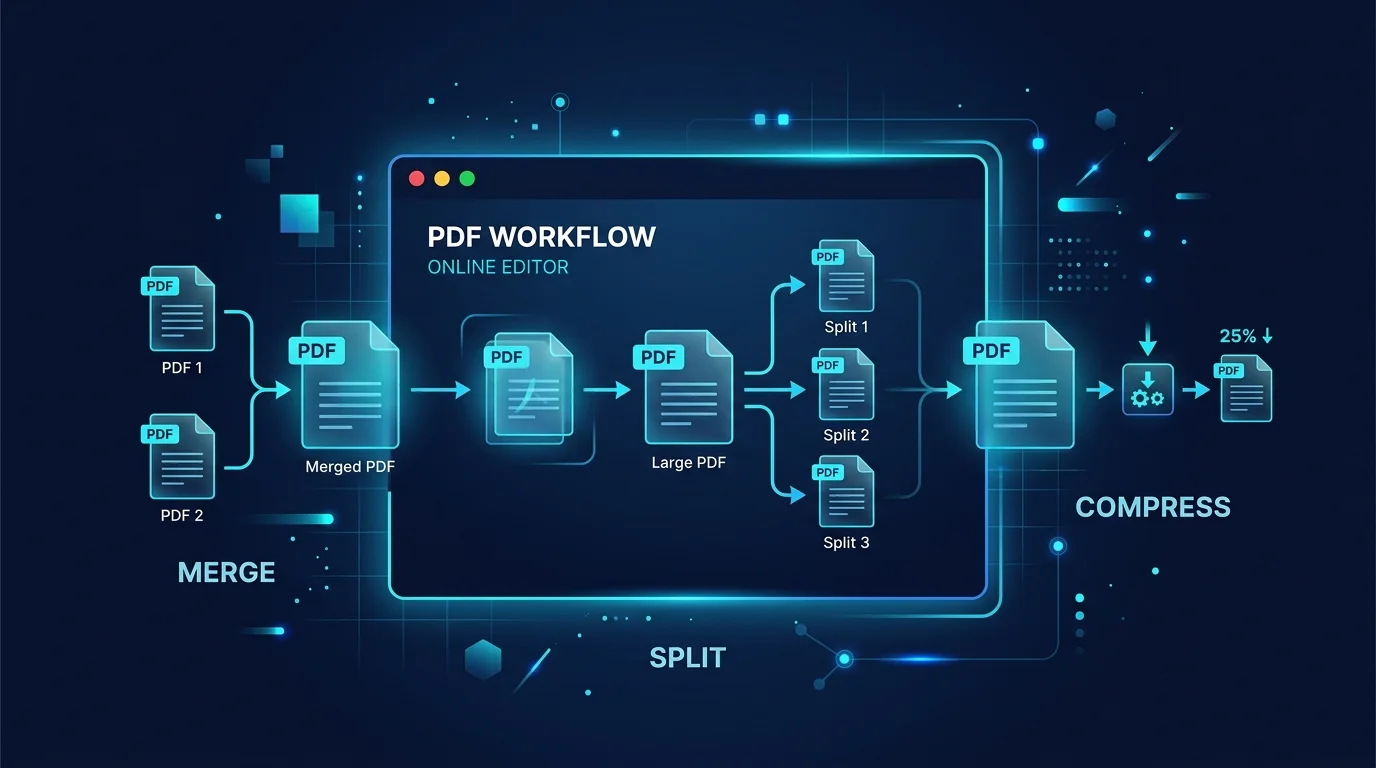
PDFs are the one file format everyone receives and almost nobody enjoys editing. A contract needs a signature page removed. A scanned report needs to shrink from 40MB to something you can actually email. A client wants the numbers as an editable Word file, not a locked PDF. None of these are hard problems, but most of us default to opening a heavyweight desktop app — or worse, uploading a sensitive file to a random site we've never heard of — just to get one small job done.
This guide walks through the PDF tasks people run into most often, and how to handle each one directly in the browser, without installing anything.
Merging and splitting PDFs
Merging is the most common request: combining a cover letter, a resume, and a portfolio into one file, or stitching together scanned pages from a multi-part document. A good merge tool should let you reorder files before combining them, not just stack them in upload order.
Splitting works in reverse — pulling specific pages out of a larger PDF, whether that's isolating a single invoice from a batch statement or extracting a chapter from a report. Look for a tool that lets you preview pages and select a range instead of guessing at page numbers blind.
Compressing without wrecking print quality
Scanned documents and design-heavy PDFs balloon in size fast, and most email providers cap attachments around 20–25MB. Compression tools reduce file size by re-encoding embedded images and stripping redundant data, but the quality of that compression varies a lot between tools.
- For documents that will only ever be viewed on screen, aggressive compression is safe and often cuts file size by 70% or more.
- For anything headed to a printer, use a lighter compression setting so text stays crisp and images don't turn blocky.
- Always compare the compressed file side by side with the original before sending it somewhere that matters, like a print shop or a legal filing.
Converting PDF to Word (and back)
Converting a PDF to Word makes sense when you need to actually edit the content — fixing a typo in a contract, updating numbers in a report, or repurposing text from a document you didn't originally create. The trickiest part of PDF-to-Word conversion is preserving layout: tables, multi-column text, and headers/footers are where cheap converters fall apart. A solid converter keeps paragraph structure and formatting intact so you're not left reformatting an entire page by hand.
Going the other direction — Word to PDF — is usually about locking a document down before sharing it, so formatting doesn't shift depending on what software the recipient opens it with.
Rotating and reordering pages
Scanned documents frequently come in sideways or upside down, usually because a few pages were fed into a scanner the wrong way. Rotating pages individually (rather than the whole document) fixes this without having to rescan anything. Combined with drag-to-reorder page management, this is usually enough to turn a messy scan into a clean, presentable file.
A quick workflow for common jobs
- Receive scattered files → merge them into one PDF in the right order.
- File too large to email → compress it, checking quality before sending.
- Need to edit the content → convert to Word, make changes, convert back if needed.
- Pages are sideways or in the wrong order → rotate and reorder before sharing.
Why browser-based tools make sense here
PDF tasks are usually one-off: you don't need a subscription to merge two files once a month. Browser-based tools skip the install, skip the account, and — done right — delete your uploaded files automatically after a short window instead of holding onto them indefinitely. That's a meaningfully better default for anything containing contracts, IDs, or financial statements.