


By Elias Shekh Writes the guides on this blog and builds the tools they describe.
How to Sign, Secure, and Password Protect Your PDFs Online
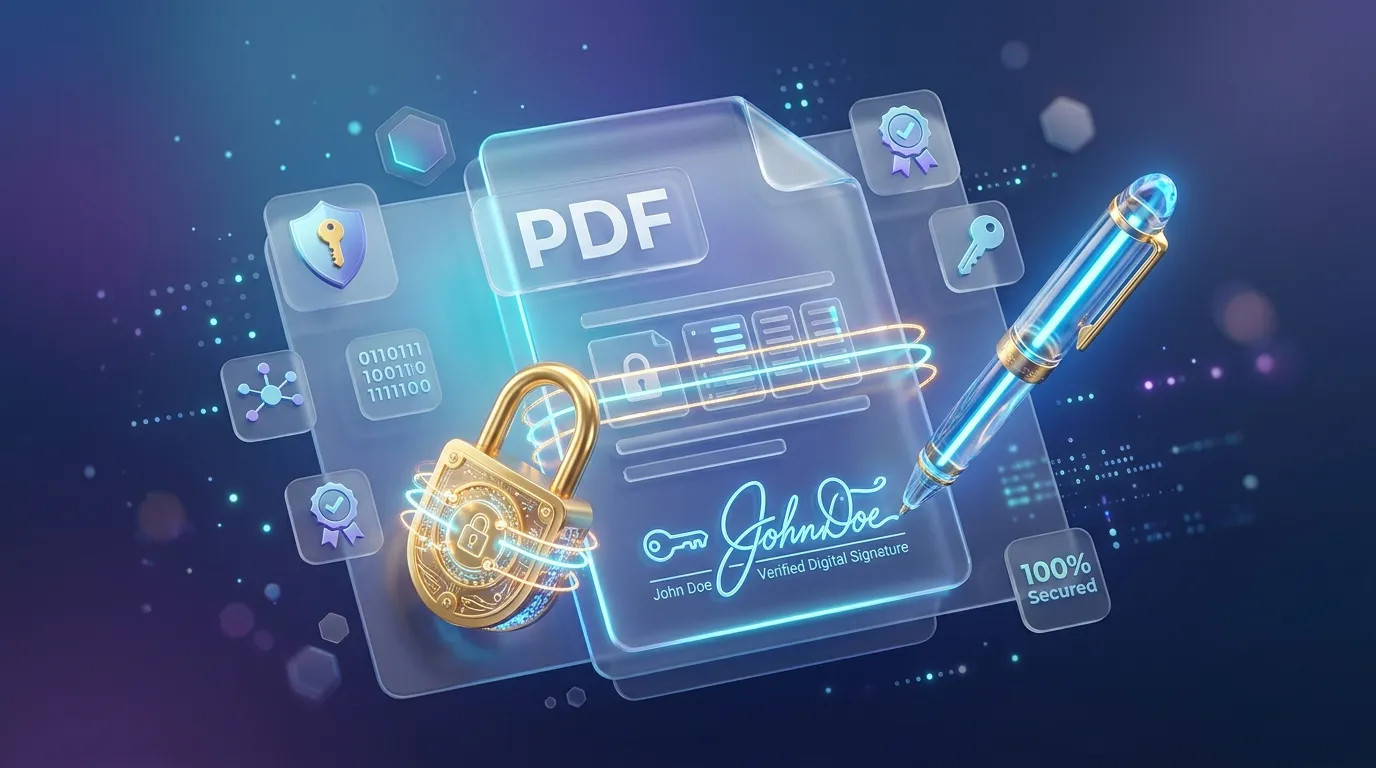
In a world of remote work and digital contracts, PDFs are constantly moving back and forth. A lease agreement needs a signature. A financial statement needs password protection before being sent via email. A design deck needs a watermark to prevent unauthorized sharing. For most people, these tasks prompt a search for a third-party website, but uploading a document containing your signature, address, or banking information to a random online tool is a massive privacy risk.
Electronic vs. digital signatures
It's important to understand the difference between an electronic signature and a digital signature. An electronic signature is a digital mark — a signature drawn with a mouse, typed in a cursive font, or uploaded as an image. A digital signature is a cryptographically secured signature that uses certificates (PKI) to lock the file and verify your identity. For most standard business agreements, a clean electronic signature is legally binding and sufficient, but it's important to use tools that don't store your signature or documents on remote servers.
Password encryption and access levels
Protecting a PDF isn't just about putting a password on it. Modern PDFs support two different types of passwords:
- Document Open Password: Requires entering a password just to open and read the file.
- Permissions Password: Allows anyone to open the file, but restricts editing, copying text, or printing unless the password is provided.
When securing a PDF, choose the type of restriction that fits your sharing context, and remember to share the password using a different channel than the one you used to send the document.
Redacting sensitive information properly
A common and dangerous mistake is trying to redact text in a PDF by drawing a black rectangle over it. Drawing a shape on top of text only obscures it visually; the underlying characters are still in the file structure, and anyone can select and copy the hidden text or strip the black shape away. To redact a PDF properly, you must use a tool that completely removes the text and images from the data of the file, replacing the space with a solid color box.
How to secure your PDFs safely
- Apply electronic signatures locally in the browser to avoid document exfiltration.
- Encrypt the document with strong AES encryption using a Document Open Password.
- Set restricted permissions to prevent copying and printing when sharing drafts.
- Use true redaction, not visual overlays, to hide sensitive numbers or names.